



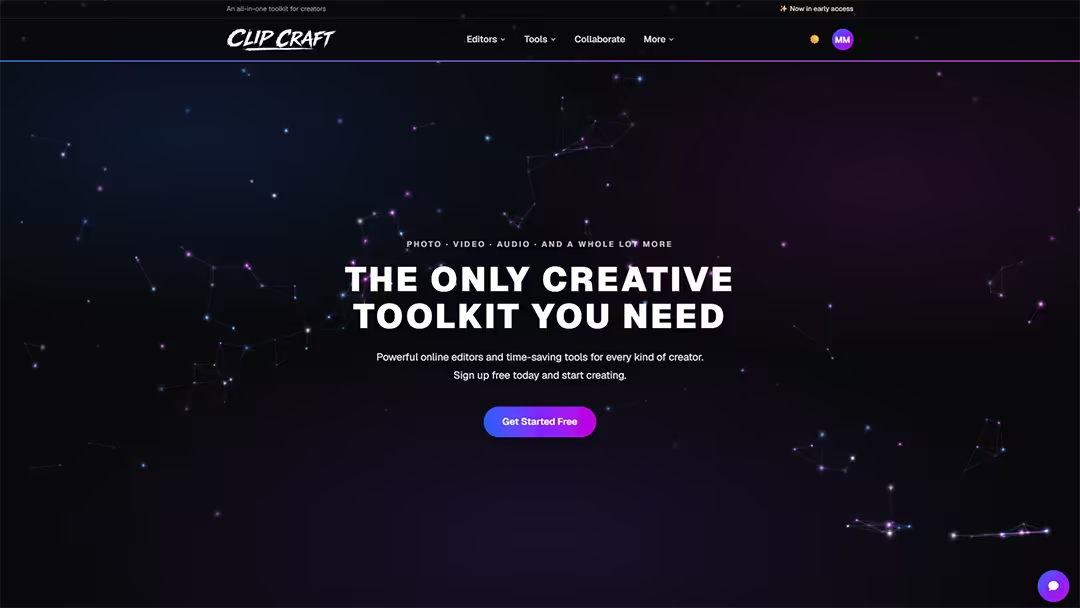
You can edit a photo, cut a video, and produce a whole song in three browser tabs, free, with nothing to install. That's ClipCraft: a free online photo, video, and audio editor, wrapped around a set of quick single-job tools and a small community where people post the tracks they make. It's one of ours, and it's new. Here's the honest tour of what's actually in it.
Full disclosure up front, the same way we do it with our other apps: ClipCraft is built by Lucky Panda. I'm going to tell you what it does well and where it's still rough, because a spec sheet that pretends everything is finished helps nobody. Some of this shipped last week. Some of it has known gaps I'll point at directly.
The pitch in one sentence: three real editors that run entirely in your browser, a handful of tools that each do one thing fast, a native companion app that loads your own plugins into the audio editor, and a place to post what you make. Let's go through it.
Three editors that run in the browser
The core of ClipCraft is three editors, and the important part is that all three are free for everyone and run client-side. Your files stay on your machine for most of what you do. There's no upload step, no render queue, no "processing on our servers" spinner for the editing itself. You open a tab and work.
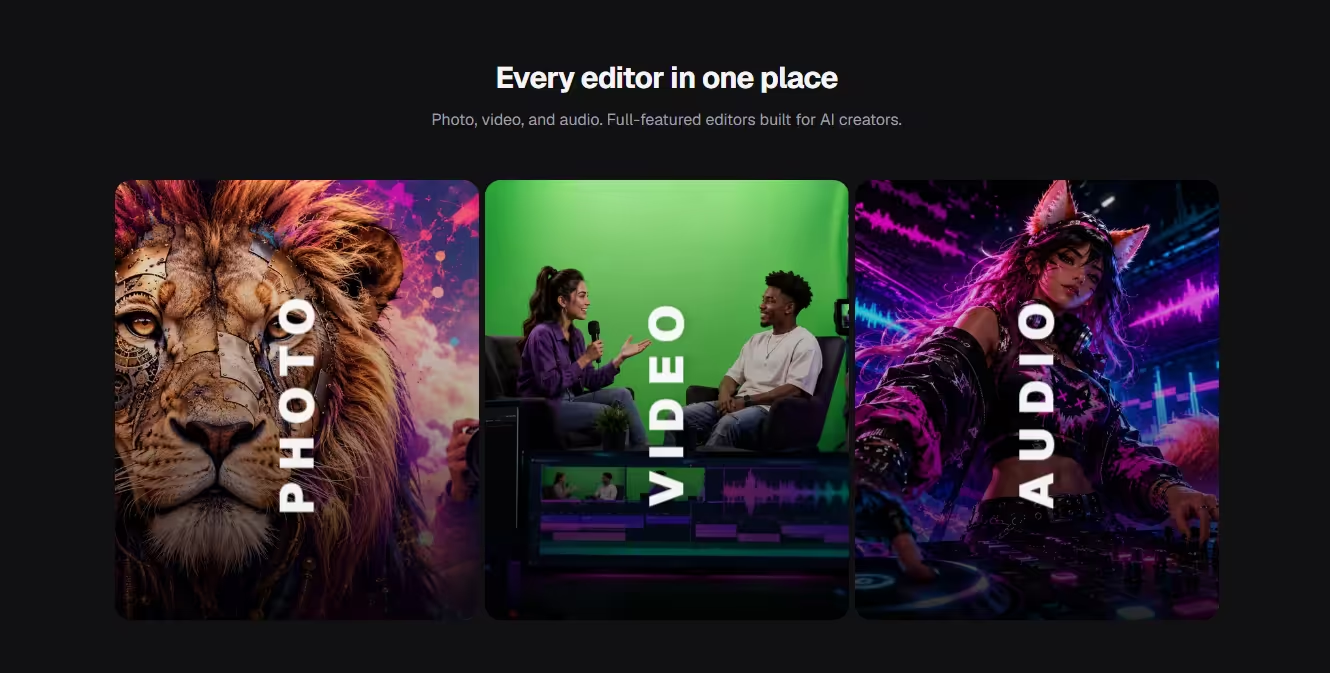
They share a look (always dark, which your eyes will thank you for at 1 a.m.) and they talk to each other, so an audio clip you drag into the video editor can bounce over to the audio editor for real work and come back. Here's each one.
SoundCraft, the audio editor
SoundCraft is a full multi-track DAW in a tab. Not a "trim your podcast" toy, an actual timeline with sample-level zoom, audio recording with an input picker and latch, MIDI recording, and a piano roll with a velocity lane. There are 15 effects, including an EQ, Auto-Tune, reverb, delay, compressor, a gate, a limiter, and stranger ones like Nightcore and Auto-Pan. You get instruments too: drum pads with per-pad effects, a sampler, a subtractive synth, and a Grand Piano that's a multi-sampled Salamander Yamaha C5, which is the same free sample set a lot of serious hobbyists already know and trust.
The automation is the part that surprised me. You can draw envelopes, curve the segments, record live knob moves, and automate almost any effect parameter plus pan and channel power. That's desktop-DAW behavior in a browser. When you're done you export to WAV or MP3, or you post the track straight to the community feed without leaving the editor. More on the community part later.
VideoCraft, the video editor
VideoCraft is the browser video editor, and it leans on your GPU. Multi-track, multi-layer compositing with blend modes and opacity, a full keyframe engine with a floating graph editor for bezier easing, and 14 or so WebGL effects. That effects list includes a proper chroma key, a luma key, and a full Ultra Key with an eyedropper, matte views, and spill suppression, which is the kind of green-screen control most free web editors never bother with. There are 16 transitions, an on-player gizmo for move/scale/rotate, custom sequence sizes, and panels you can pop out onto a second monitor. Drag a file onto the timeline and it lands where you drop it.
Now the honest part, and it's a real one: VideoCraft can't save a video project yet, and it can't export a finished timeline to MP4 yet. You can pull frame screenshots at full sequence resolution, and the audio round-trip into SoundCraft works, but a one-click "export my edit as a video file" isn't there at the time of writing. It's on the roadmap, and I'd rather you hear it from me than find out after an hour of work. If you're cutting something today, export before you close the tab and plan around that gap.
ImageCraft, the photo editor
ImageCraft is the Photoshop-style one. A real layer stack with pixel, adjustment, fill, and shape layers, layer masks, clipping masks, and 16 blend modes. There are 16 adjustment types, including Levels with a live histogram, Curves, Hue/Saturation, and Selective Color, plus a Layer Style dialog with 9 effects. The brush engine is stamp-based with 20 presets, and the selection suite goes from a plain marquee up to magic wand, object selection, and an AI Select that runs on your device for free at its fast tier.
A couple of the heavier moves cost tokens because they run on a real GPU in the cloud: the Remove tool's cloud inpainting and the higher-quality AI selection tiers. The client-side versions of both are free, so you only reach for the paid path when the free one isn't cutting it. I'll explain the token thing plainly in the pricing section, because ClipCraft is careful about not hiding it.
Two of ClipCraft's simpler photo jobs also exist as standalone Windows apps we've written about before. If you want the same batch image compression offline on your desktop, that's our MooCrunch image compressor, and the batch geotagging lives in our Geo Tag app. Inside ClipCraft they run in the browser instead. Same jobs, different door.
Tools that do one thing fast
Around the three editors is a set of focused tools. You open one, do the single job it's built for, and leave. Most run entirely in your browser and cost nothing. A few call out to a server for the AI-heavy work, and those cost tokens, which I'll get to.
The one that pulls the most traffic is the Vocal Extractor. It uses Demucs to split the vocals out of a song, and it's the one tool here that truly needs a server, because stem separation is too heavy for a browser tab. One quirk worth knowing before you try it: it outputs the vocals, either a clean acapella or vocals with a faint backing, and there's no instrumental-only export. So it's a vocal isolator, not a karaoke-track maker. It takes video files too and syncs the cleaned audio back into the clip. The first run of the day spins up a GPU from cold, so expect roughly 40 extra seconds on that first job, then it's quick after that. The price shows on the file card before you commit, and if a job fails to start it refunds itself.
The rest of the set, quickly:
- Background Remover: GPU AI cutout, select then confirm, with free background swaps to a color, a blur, or your own photo once the subject is out.
- Video Captions: auto-captions from Whisper with word-level highlighting and 82 animated styles, burned in and rendered on your machine. There's also an audio-to-video mode that builds a simple video from a song.
- PDF Compressor and PDF Creator: shrink PDFs or build real fillable forms, both fully client-side, nothing uploaded, no tokens.
- MooCrunch: batch compress and convert images to WebP, AVIF, PNG, or JPEG with a Squoosh-style per-image view, all in the browser.
- Geo Tag: batch geotag photos from a map or strip GPS and EXIF out, using ExifTool compiled to WebAssembly so it never leaves your machine.
- Quick Photo Resizer: crop and resize to the common AI aspect ratios in a couple of clicks.
- DJ: a two-deck mixer with waveforms, hot cues, loops, beat jump, EQ, filters, sync, and a crossfader, which also lives inside SoundCraft as a tear-off instrument you can record straight to a channel.
If you've read our guide on compressing images without losing quality, MooCrunch inside ClipCraft is that same idea, right in the browser, no download.
ClipCraft Bridge: your real plugins in a browser DAW
This is the one I'd point a skeptic at. ClipCraft Bridge is a free native Windows app, about 5 MB, that hosts your own VST3 plugins so SoundCraft can use them. Not modeled copies. The actual Omnisphere, Massive X, or Kontakt sitting on your drive, played live from a MIDI keyboard inside a browser tab.
You can load an instrument plugin and play it live or render MIDI clips through it, run a clip through an effect like Auto-Tune Pro and bounce the result, and keep a persistent effect chain that saves with your project. iLok-licensed plugins work. As far as I know, no other browser-based DAW does this at all, which is why we treat it as the headline feature rather than a footnote. It's free to download while it's new.
The limits, so you're not surprised: Bridge is Windows-only right now, and it's VST3 only, so your old VST2 plugins won't show up. If you're on a Mac or you live in an older plugin format, this specific piece isn't for you yet.
The community side
ClipCraft isn't only editors. When you finish a track in SoundCraft, you can post it to a public feed at clipcraft.ai/music, public or unlisted or private, and it gets its own track page with cover art, tags, and likes. The cover art can generate itself from the song title the first time you save a named project, or from a prompt you write when you post. Free accounts get a few of those generations to start, and you can always upload your own art instead.
Every creator gets a public profile with a banner, a bio, social links, and track cards that play inline. You can follow people, like their tracks, and message them, and there's an assistant in the messenger you can talk to as well. There's also a collaboration board for finding people to work with, and that board is free by policy and staying that way. It's a small community because the whole thing is new, but that's kind of the point of getting in early.
What it costs
Here's the part people always want straight, so no dancing around it. All three editors are free for everyone. The paid tiers don't lock any editor features behind a paywall, they sell storage and server compute. Storage is the actual wall.
There are four tiers: Free, Saver at $1.99 a month, Creator at $7.99, and Studio at $19.99. Moving up buys you more project storage (from 100 MB on Free up to 50 GB on Studio), more monthly tokens, and more tool uses. Tokens meter only the things that run on a server: vocal extraction, auto-captions, the AI selection and remove tiers, the background remover, and messages to the assistant. Everything client-side, the editors, the PDF tools, MooCrunch, Geo Tag, the resizer, the DJ, costs no tokens at all. Purchased token packs never expire. Because there's usually a launch promo running on the first month, I'd rather you check the current pricing page than trust a number I typed here that might be stale by the time you read it.
The short version: you can do a lot on ClipCraft without ever paying, and the moment you'd pay is when you want to keep bigger projects stored in the cloud or run a pile of AI jobs. That's a fairer deal than most free web editors, which tend to wall the good features and stamp a watermark on your export. ClipCraft doesn't do either.
Where it's still rough
I've scattered these through the post, but they're worth collecting in one place, because knowing the gaps before you start saves you a headache:
- VideoCraft can't save a project or export a finished timeline to MP4 yet. Screenshots and the audio round-trip work; a video export is coming.
- Vocal separation is AI, so on dense, busy mixes the stems can ghost a little. That's true of every tool in this category, not a ClipCraft-specific flaw.
- ClipCraft Bridge is Windows-only and VST3-only for now.
- Browser DAW and video performance depend on your machine. A huge session will favor a real desktop app on an older laptop.
- The community is small because the site is new. Early, not empty, but small.
None of those are dealbreakers for what most people come here to do, which is edit a photo, cut a clip, or make a track without installing anything. But you should walk in knowing them.
Who this is for
ClipCraft is built for people making things with AI video and AI music, the folks turning a Suno song or a text-to-video clip into something finished and postable. If that's you, having the editors, the vocal tools, the captions, and a place to share all under one login is a genuinely nice setup. If you just need to knock out one quick job, compress a folder of images, strip GPS off some photos, pull the vocals from a track, the tools work fine on their own and cost nothing.
It's free to start and there's no install, so the honest recommendation is just to try the thing. Make a free account, open whichever editor matches what you're working on, and see if it fits how you work. If you make something you like, post it to the feed. And if you're on Windows and you produce music, grab an account and then the Bridge, because loading your own plugins into a browser DAW is the kind of thing you have to see working to believe.
Sources: ClipCraft product pages and in-app docs (features, tool behavior, and limits verified against the current build, July 2026); ClipCraft pricing (plans and token metering); ClipCraft Bridge (VST3 hosting). ClipCraft is built and maintained by Lucky Panda Websites. Vocal separation uses Demucs; the Grand Piano instrument uses the Salamander Yamaha C5 sample set.
Ready to Build Something?
Let's talk about your project and see how we can help.
Schedule a Consultation